
If you’re wondering how to build an internal AI dashboard without juggling disconnected PRDs, design tools, and lengthy development cycles, the process is far more streamlined than it used to be. In this guide, you’ll learn exactly how to use Omniflow to define your dashboard requirements,generate a living PRD, prototype the interface, refine the user experience with visual editing, and move toward a full-scale AI-powered internal product.
 Building an internal tool used to mean stitching together product requirement docs, wireframes, frontend development, backend architecture, database planning, API integrations, and AI implementation, often across multiple disconnected tools and teams.
That fragmentation is one reason custom software development projects so often become expensive, slow, and difficult to maintain. If you’ve read our breakdown of software development cost statistics, you already know how quickly internal product costs can escalate.
Omniflow completely changes that process.
Instead of moving from documentation to design to development in disconnected stages, Omniflow lets you build an internal AI dashboard through one connected workflow—from PRD creation to interactive prototype to full-scale product generation.
Whether you’re building an AI sales dashboard, customer success dashboard, executive KPI dashboard, or internal operations dashboard, here’s exactly how the process works.
What Is an Internal AI Dashboard?
An internal AI dashboard is a private business application designed to help teams monitor performance, analyze workflows, and act on business data more efficiently.
Unlike a standard dashboard that simply displays metrics, an AI-powered dashboard adds intelligence through automation, predictive analysis, anomaly detection, and actionable recommendations that help teams make faster decisions.
These dashboards can take many forms depending on the business need. Common examples include AI-powered customer success dashboards that flag churn risk, internal sales forecasting dashboards that surface revenue trends, support ticket triage dashboards that prioritize urgent issues, and executive KPI dashboards that summarize high-level operational performance.
As AI adoption continues accelerating across industries, internal tools like these are becoming increasingly valuable for teams looking to move faster with fewer manual processes.
Step 1: Define Your Internal AI Dashboard Idea in Omniflow
Every successful internal dashboard starts with a clearly defined use case. For this walkthrough, let’s imagine you’re building an AI-powered customer success dashboard for a SaaS company, something that helps account managers monitor customer health, support activity, renewal timelines, and engagement trends from one central interface.
Inside Omniflow, this process starts by describing the product in plain English rather than manually drafting documentation from scratch.
For example, you might prompt the platform with: “Build an internal AI dashboard for our customer success team that tracks customer health scores, support ticket volume, product usage metrics, renewal risk, and AI-generated retention recommendations.”
From there, Omniflow begins transforming that idea into a structured product framework.
Rather than leaving your concept as a rough prompt, Omniflow helps shape it into a functional product blueprint by defining users, workflows, permissions, dashboard objectives, and AI functionality. This gives builders a structured starting point instead of forcing them to manually piece requirements together from scratch.
 Step 2: Build the Dashboard PRD
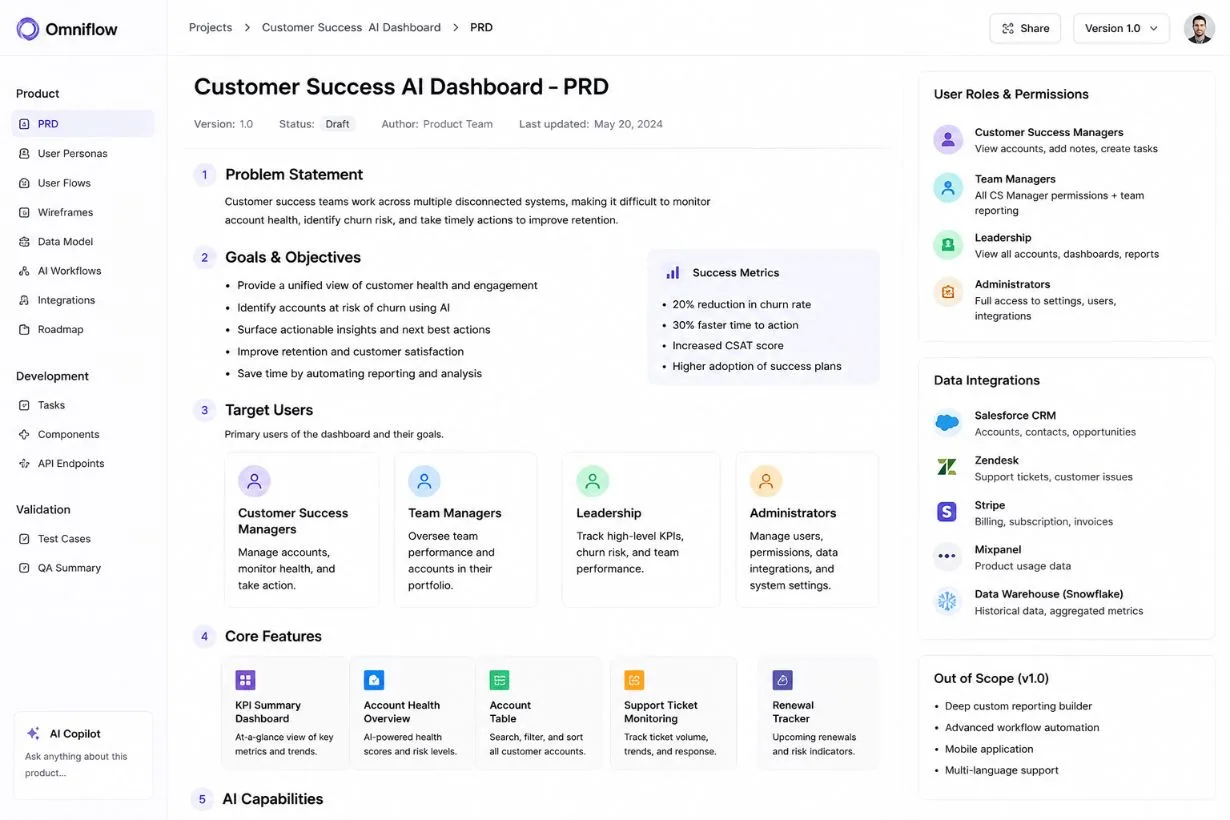
Once the dashboard concept is clearly defined, the next step is creating the product requirements document.
In traditional software workflows, PRDs often become static documents that quickly lose relevance as product decisions evolve. Omniflow approaches this differently by treating the PRD as part of a living product workflow rather than a disconnected planning artifact.
For our internal AI dashboard example, your PRD would define the core business problem, perhaps customer success teams struggling with fragmented systems that make it difficult to identify churn risk or monitor account health efficiently. It would also establish who the product is for, whether that includes customer success managers, team leads, executives, or internal administrators with different permission levels.
From there, the PRD becomes highly specific to the dashboard itself. This includes outlining features like KPI summary widgets, searchable customer tables, AI-generated account summaries, renewal tracking modules, support monitoring, alert systems, and drilldown account pages.
It would also define which data sources the dashboard should connect to, such as CRM software, billing systems, product analytics tools, support platforms, or internal databases.
Step 3: Generate the Dashboard Prototype
Once the dashboard requirements are established, Omniflow can begin transforming those specifications into a visual prototype. This is where the internal AI dashboard starts to become tangible, allowing teams to move from abstract planning into something they can actually see, review, and improve.
For a customer success dashboard, this prototype might include a secure login screen, an overview dashboard homepage with KPI cards, customer health charts, searchable account tables, renewal risk alerts, AI recommendation panels, and individual customer detail pages.
Instead of waiting through lengthy design handoff cycles, teams can begin evaluating how the dashboard will actually function much earlier in the product development process.
This step is particularly valuable because internal dashboards are workflow-driven products. Seeing the dashboard layout visually often reveals usability issues or opportunities that wouldn’t be obvious inside a traditional requirements document alone.
Step 4: Refine the Dashboard Experience
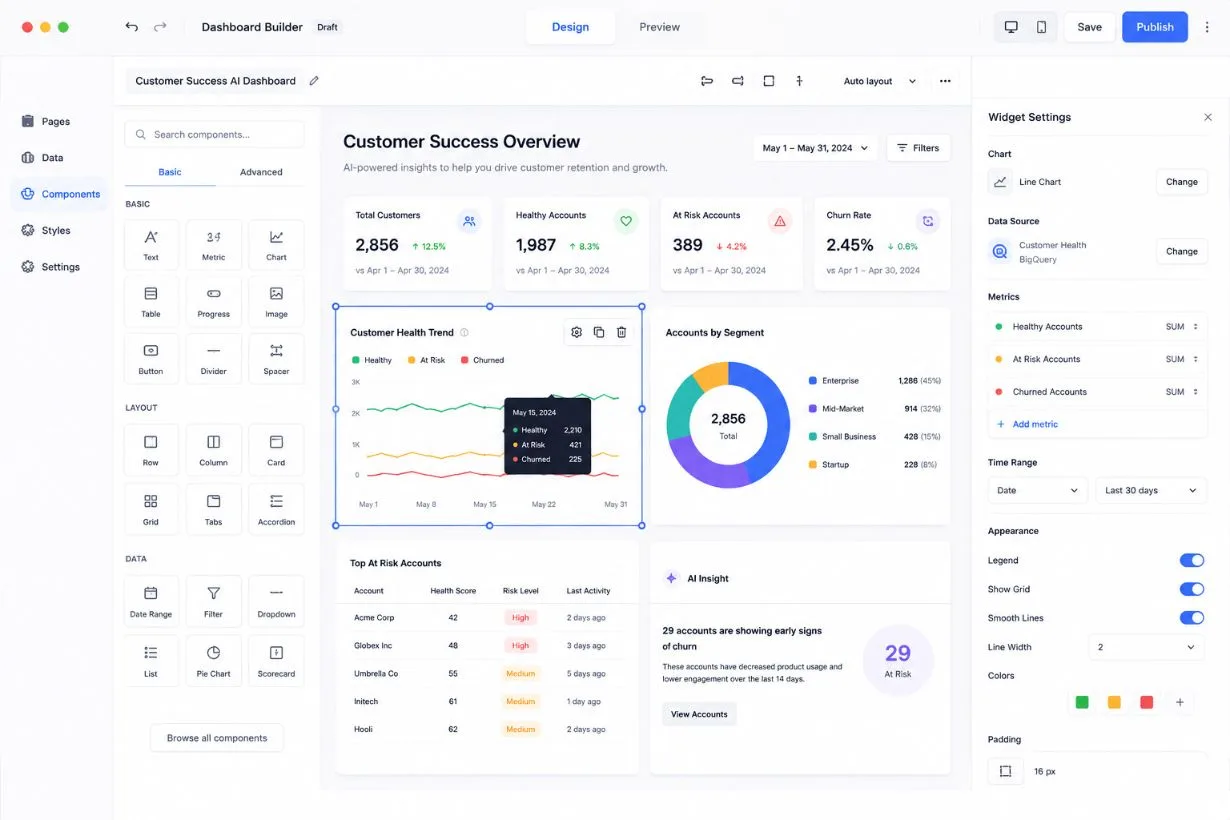
No internal AI dashboard gets everything right on the first iteration, which is why refinement is a critical part of the product development process. Once your initial dashboard prototype is generated, Omniflow’s built-in WYSIWYG visual editor makes it easy to refine the interface without getting stuck in disconnected design revision cycles.
Builders can visually adjust dashboard layouts, reposition widgets, improve filtering options, rename interface elements, create new reporting views, and optimize navigation based on real workflow needs.
One of Omniflow’s biggest advantages is that these changes don’t live in isolation. Because the visual editor is connected to the broader product workflow, refinements made to the dashboard UI are automatically reflected in the living PRD, keeping requirements, design, and product documentation aligned as the dashboard evolves.
That means fewer communication gaps, less product drift, and a much faster path from iteration to implementation.
 Step 5: Add AI Dashboard Intelligence
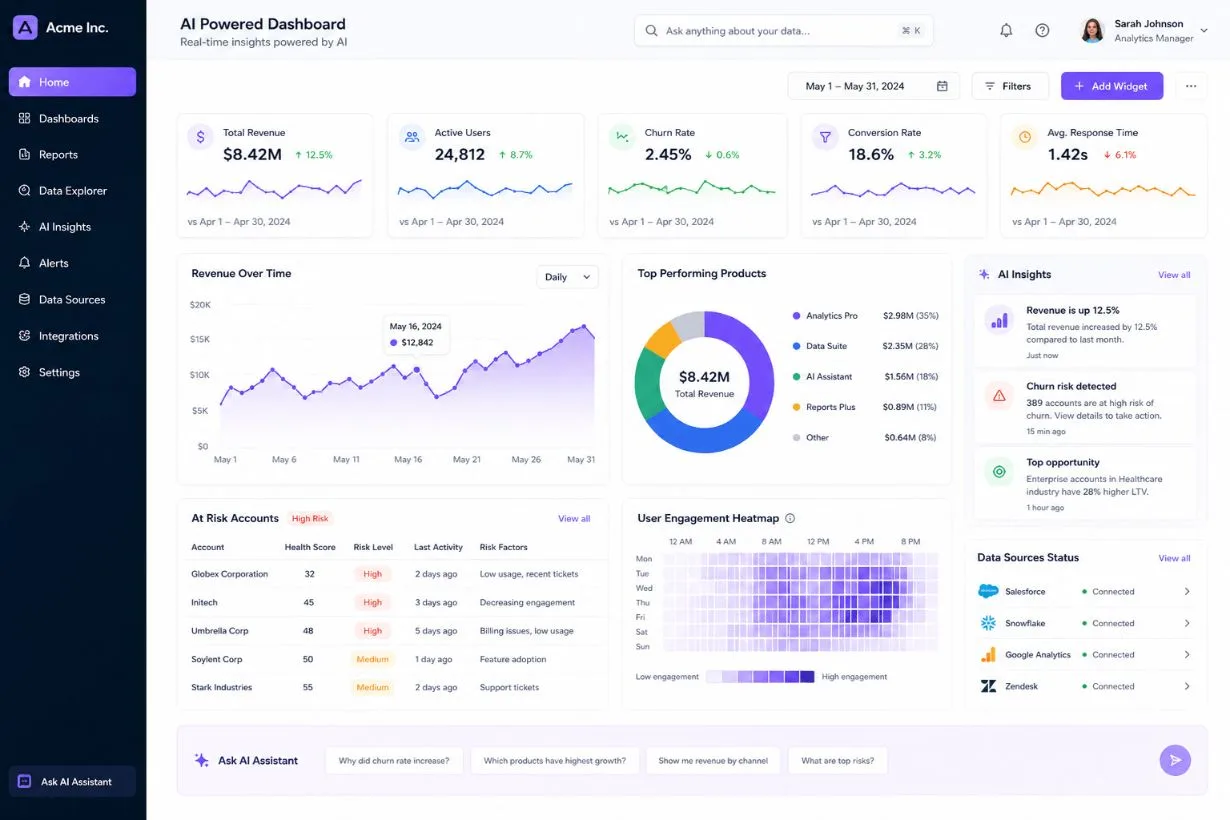
This is the stage where a standard internal tool becomes a true internal AI dashboard. While traditional dashboards focus on displaying data, when you integrate AI, your internal dashboards help teams interpret that data, identify risks, and automate decision-making.
Depending on the business use case, AI features might include churn risk scoring, anomaly detection, ticket summarization, predictive forecasting, recommended next actions, or even natural language dashboard queries.
Within Omniflow, builders can define AI-powered dashboard behavior directly within the product workflow, whether that means natural language queries, predictive analytics, anomaly detection, automated summarization, or AI-generated recommendations tied to business data.
For example, a user might ask, “Which enterprise accounts show declining engagement and rising support volume this month?” or “Summarize the highest-risk customer accounts based on current activity.”
These kinds of capabilities dramatically increase the usefulness of an internal dashboard by reducing the time teams spend manually interpreting fragmented information.
Step 6: Generate the Full Product
Once the dashboard requirements, workflows, and AI functionality are fully defined, the project can move beyond prototyping into full product creation. Unlike traditional no-code dashboard builders that stop at interface creation, Omniflow supports broader product generation by connecting UI, backend logic, infrastructure planning, permissions, and AI workflows inside one product environment.
For an internal AI dashboard, this includes the architecture behind the interface itself—things like frontend application logic, backend workflows, authentication systems, permissions, database structure, API integrations, and the infrastructure needed to support AI functionality.
This is especially important for internal dashboards, which often rely heavily on integrations, role-based access, and operational workflows that need to function reliably across teams.
Step 7: Test, Iterate, and Scale
Before launching an internal AI dashboard into production, thorough testing is essential. Internal tools often become critical business infrastructure, which means reliability matters just as much as functionality.
Testing should include validating role-based permissions, API connectors, empty dashboard states, reporting exports, data accuracy, dashboard performance under load, and AI output reliability. If the dashboard is making recommendations or surfacing insights, teams also need confidence that those outputs are genuinely useful rather than creating noise.
One of Omniflow’s biggest advantages here is that iteration remains connected to the living product itself. Whether you’re adding a new dashboard tab, refining permissions, or expanding AI reporting functionality, the product evolves from a single source of truth instead of requiring fragmented redesigns and disconnected engineering handoffs.
 Final Thoughts: Why Build an Internal AI Dashboard With Omniflow?
Building an internal AI dashboard traditionally means managing disconnected PRDs, design mockups, engineering handoffs, backend planning, integrations, and AI implementation across multiple tools. That process is often slow, expensive, and prone to product drift as requirements change.
Omniflow simplifies that workflow by keeping the entire product lifecycle connected—from initial idea and PRD creation to dashboard prototyping and full product development. Instead of stitching together fragmented tools and teams, you can build internal AI dashboards in one unified environment designed to move products from concept to reality faster.
If you want to build an internal AI dashboard without the traditional development bottlenecks, try Omniflow today to see how we can help you build more efficiently.
FAQs - How To Build Dashboards With Natural Language for Better Instant Insights
What is an internal AI dashboard?
An internal AI dashboard is a private business application that helps teams monitor data, workflows, and performance while using artificial intelligence to surface insights, automate analysis, and recommend actions. Unlike traditional dashboards that only display data, AI-powered dashboards can identify anomalies, summarize trends, answer natural language queries, and support faster decision-making.
What can an internal AI dashboard be used for?
Internal AI dashboards can support a wide range of business use cases, including customer success monitoring, sales forecasting, executive reporting, support ticket triage, operations tracking, marketing performance analysis, and business intelligence reporting. Any workflow that relies on fragmented business data can potentially benefit from a centralized AI-powered dashboard.
How do you build an internal AI dashboard?
Building an internal tool typically involves defining the product requirements, designing the dashboard interface, integrating business data sources, adding AI functionality, and developing the underlying infrastructure needed to support the application. Platforms like Omniflow streamline this process by connecting PRD creation, prototyping, UI refinement, AI workflows, and full product development in one environment.
What AI features can be added to an internal dashboard?
AI-powered dashboards can include features like predictive analytics, automated anomaly detection, natural language queries, AI-generated summaries, churn risk scoring, forecasting, recommended next actions, conversational analytics, and intelligent reporting. The exact features depend on the business use case and the type of data being analyzed.
Do I need developers to build an internal AI dashboard?
That depends on the complexity of the dashboard and the platform you use. Traditional dashboard development often requires frontend developers, backend engineers, database architects, and AI integration work. Product platforms like Omniflow reduce that complexity by helping teams move from product planning to dashboard creation more efficiently.
What data sources can an internal AI dashboard connect to?
Internal AI dashboards commonly connect to CRMs, billing platforms, support desk software, analytics tools, SQL databases, cloud data warehouses, APIs, and proprietary internal systems. The most effective dashboards centralize fragmented business data into one unified interface.
How long does it take to build an internal AI dashboard?
Build timelines vary depending on complexity, integrations, user roles, and AI functionality. A basic dashboard prototype can be created much faster than a fully production-ready internal application, especially when using platforms designed to accelerate product development.
Why use Omniflow to build an internal AI dashboard?
Omniflow helps teams build internal AI dashboards through a connected workflow that includes living PRDs, visual dashboard prototyping, WYSIWYG UI editing, AI workflow planning, and full product development support. This reduces product drift, speeds up iteration, and simplifies the transition from idea to implementation.