Live UI Editor
Make production-safe UI changes visually with live preview and deployment built into Omniflow.
Make production-safe UI changes visually with live preview and deployment built into Omniflow.
Visual UI Editing
Edit your application visually instead of updating component files by hand.
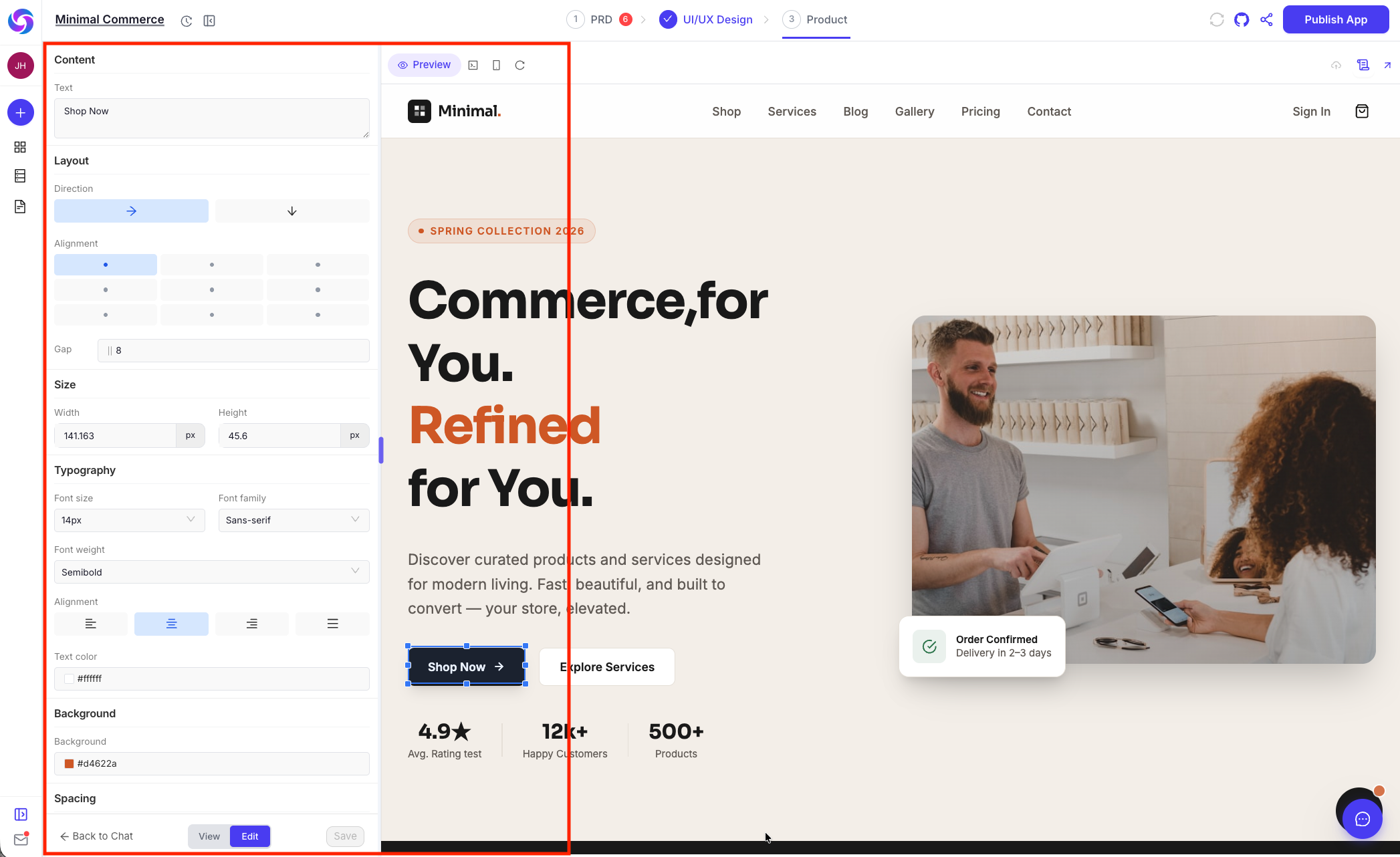
- Click-to-Edit Blocks: Select app blocks and text elements directly on the page to make updates where they appear.
- Instant Text Updates: Modify headlines, body copy, and other visible content without switching into code.
- Visual Style Controls: Adjust colors, typography, and layout details through a visual workflow.
Live Preview and Edit Mode
Review and update your UI in real time:
- View/Edit Toggle: Switch seamlessly between viewing your app and editing it visually.

- Real-Time Feedback: Changes appear immediately, making it easy to review updates as you work.
- Faster Iteration: Make changes without editing files and refreshing pages.
Save and Deploy Updates
Move from edit to release without a heavy workflow:
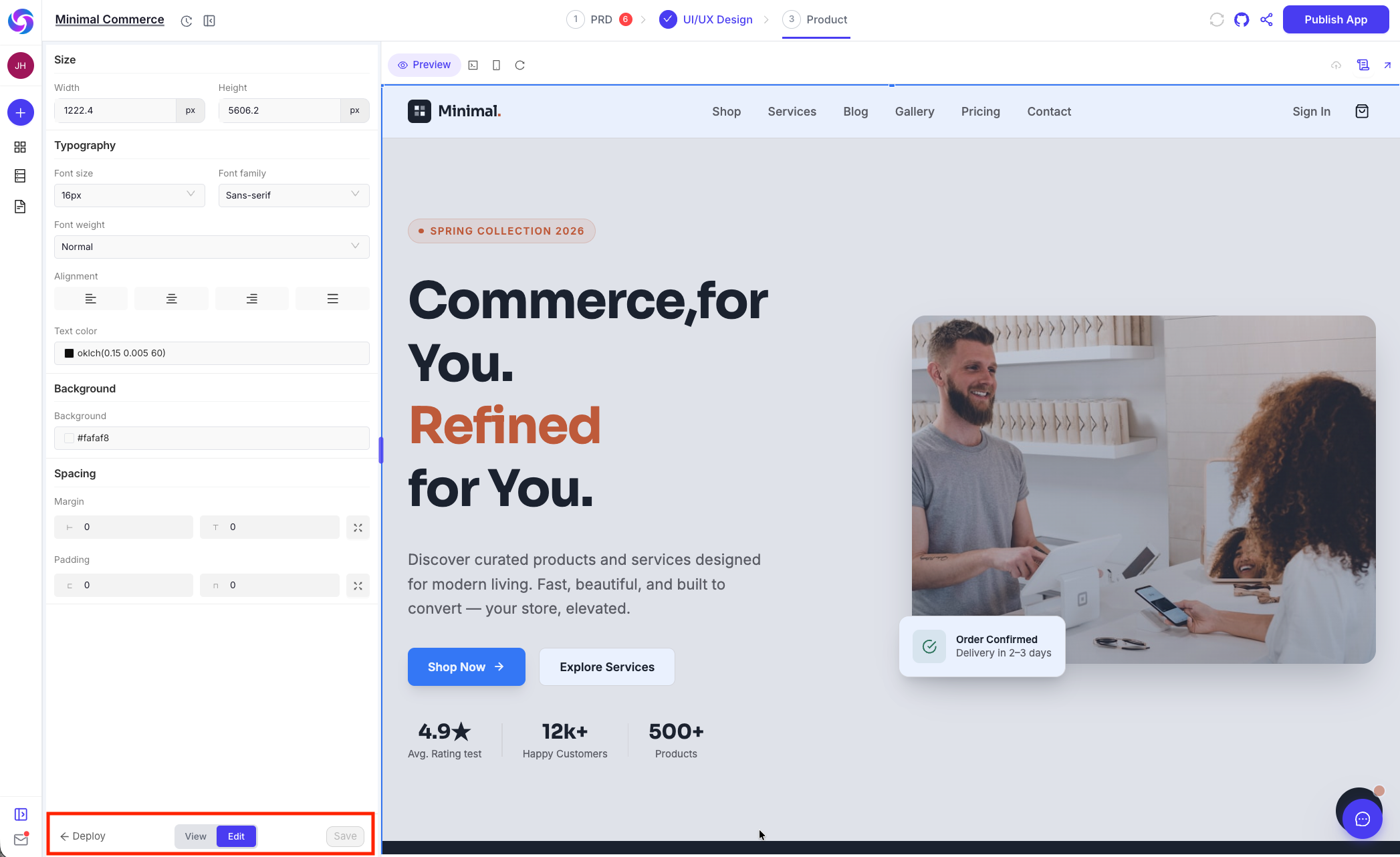
- Preview Before Publishing: Review changes in context before saving.
- Instant Deployment: Push approved updates live without a heavy manual workflow.
Getting Started with UI Editor
Create and ship visual UI changes in a few steps:
- Open your project from the Omniflow dashboard.
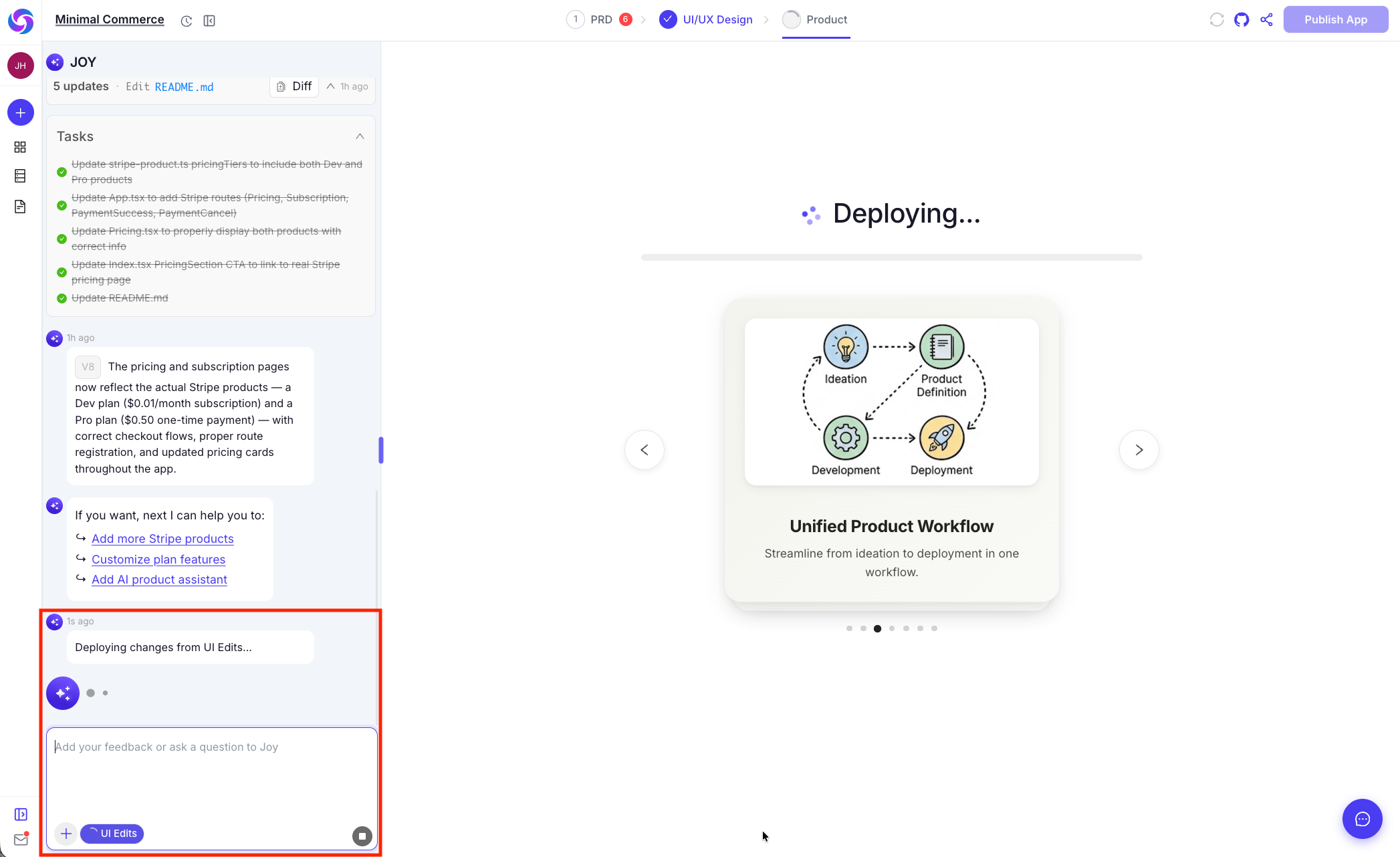
- Click the UI Edits button at the bottom-left of the screen.
- Switch from view mode to edit mode.
- Click the block or text element you want to update.
- Edit text and styles visually.
- Save your changes and deploy when ready.