Build AI Native App
Add AI features to your application with prompt-based generation, model selection, and deployment in Omniflow.
Add AI features to your application with prompt-based generation, model selection, and deployment in Omniflow.
AI-Powered App Integration
Use Omniflow to add AI features directly inside your project:
- Prompt-Based Setup: Describe the feature in natural language instead of building the integration from scratch.
- Project-Level Integration: Add AI functionality inside an existing product workspace.
- Fast Iteration: Refine the generated feature by chatting with AI.
- Deployable Output: Deploy the feature when it is ready.
Common AI Integration Examples
Common examples include:
- AI chatbots for customer support
- Smart search and summarization
- Personalized product recommendations
- AI-generated content
AI Model Configuration
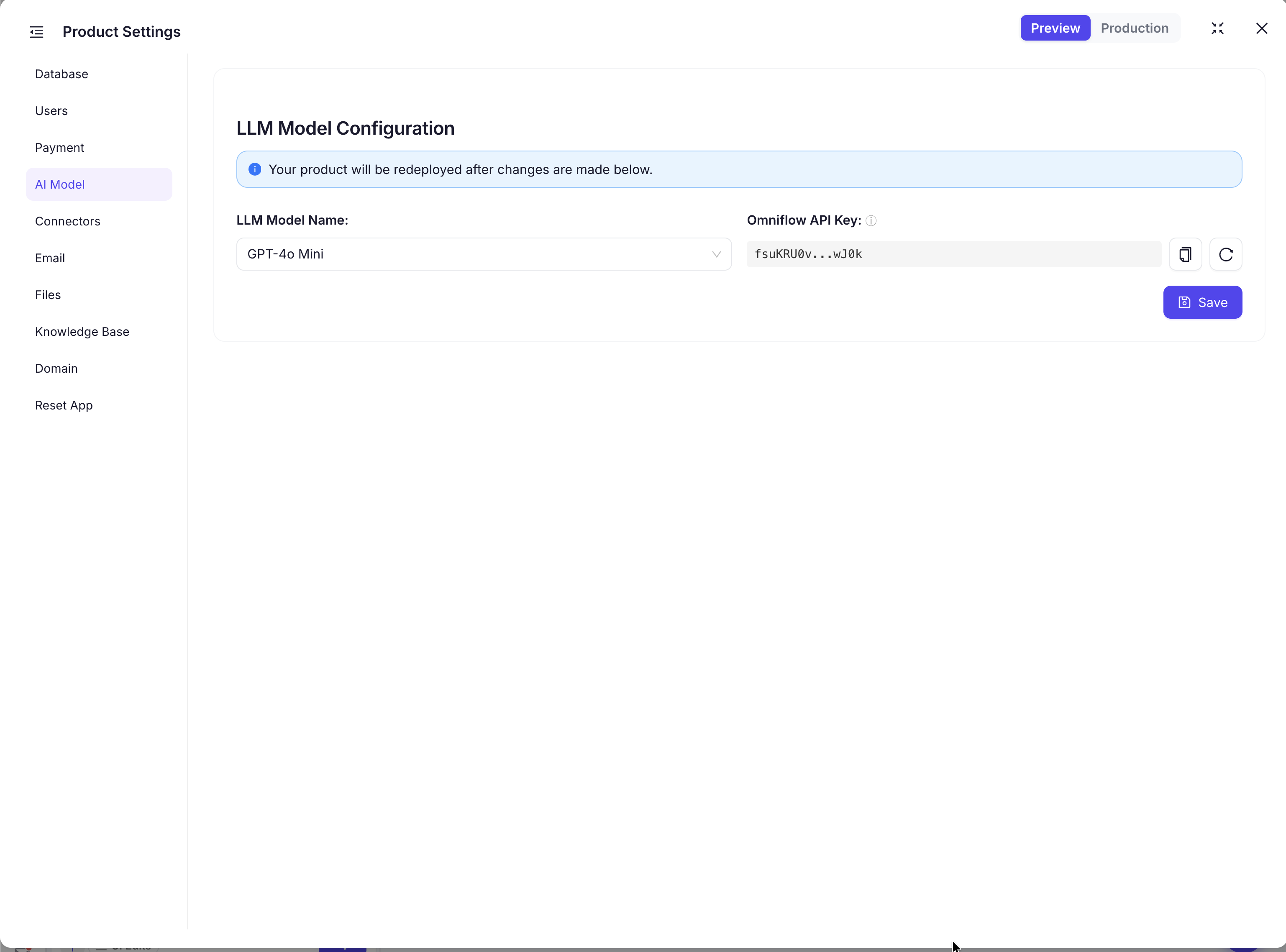
Choose which model powers your product:
- Default API Key: Start testing without setting up your own key.
- Model Selection: Choose the model in project settings under the AI Model tab.
- Default Model: New products use GPT-4o Mini by default.
- Re-Deploy Required: Re-deploy after changing the model.
Getting Started with AI Integration
Add AI functionality in a few steps:
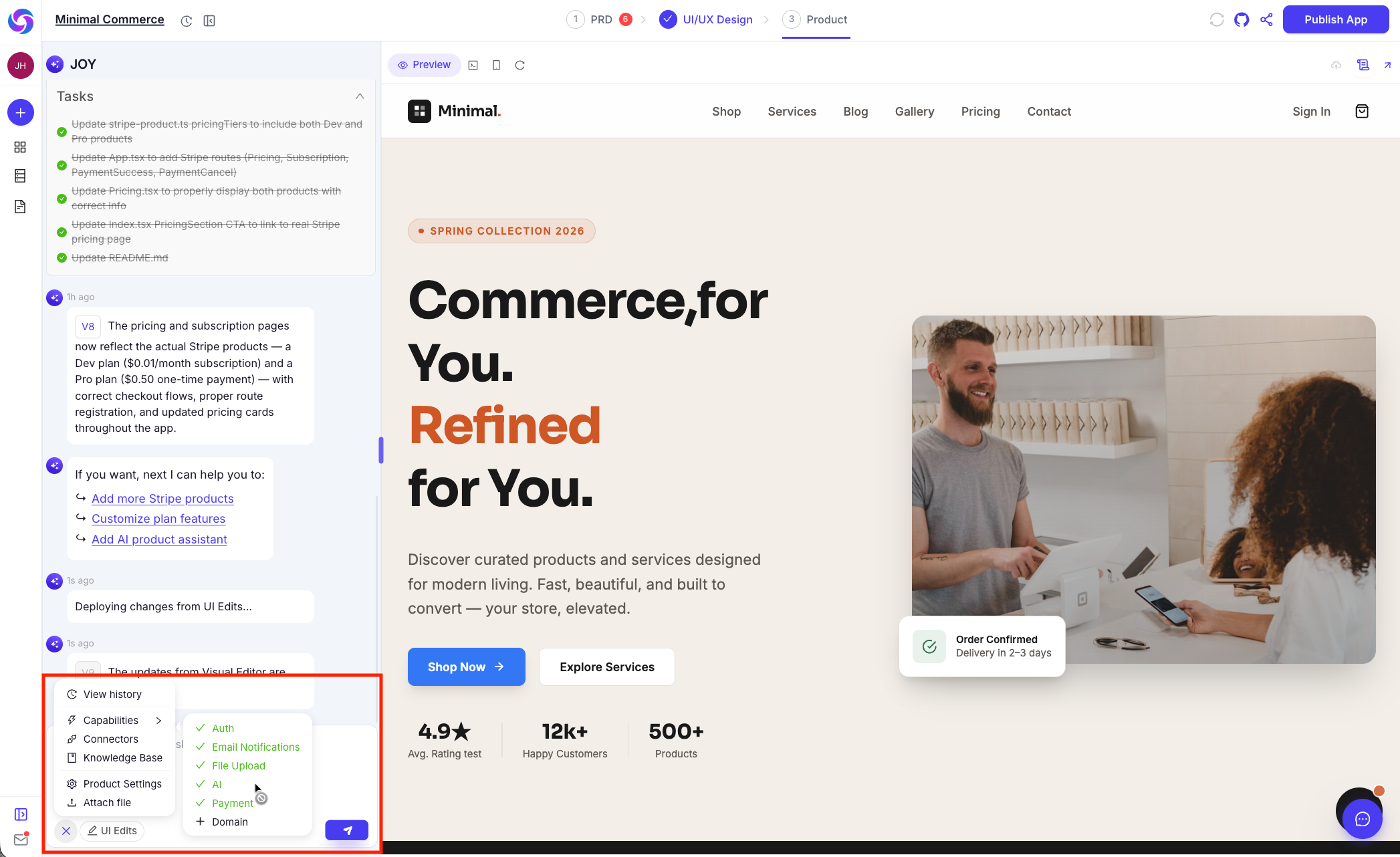
- Open the project where you want to add AI functionality.
- Click the Add (+) button and select + AI.
- Describe the feature you want in natural language.
- Review the output and refine it with AI if needed.
- Optional: Change the model in the AI Model tab.
- Re-deploy the project to publish the feature.
Prompt Examples
Describe the feature in plain language. Examples:
- "Add an AI chatbot that answers customer support questions."
- "Create a recommendation engine for related products."
- "Generate AI-powered product descriptions."